Channel Groups
Channel Groups control which channels can access specific content.
Every resource belongs to a Channel Group. By default
Base Group
Every event automatically includes the Base group.
Resources assigned to Base are available in every channel.
Use Base for content that should be visible to everyone.
Examples:
- General information
- Common schedule items
- FAQs
- Contacts
Custom Groups
You can create additional Channel Groups for channel-specific content.
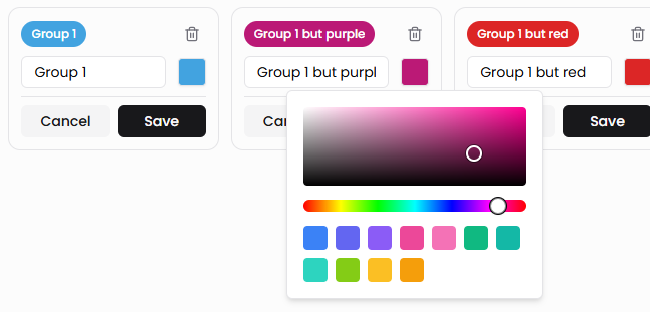
Pro tip: Assign a unique color to each Channel Group for a quick visual overview of which resources belong to which group
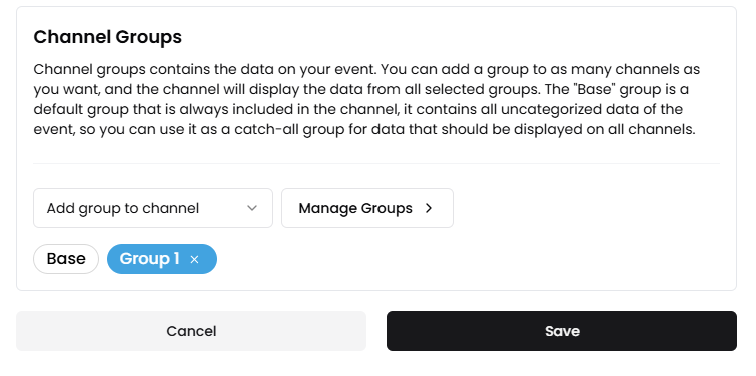
After creating a group, assign it to one or more channels.
- Select your channel
- Press add group to channel
- Select the groups that should be visible in this channel
- Press save
Example
| Channel\Group | Base | Group 1 | Group 2 |
|---|---|---|---|
| Standard | ✓ | ✗ | ✗ |
| Volunteers | ✓ | ✓ | ✗ |
| Leaders | ✓ | ✓ | ✓ |
Result:
- All channels see resources in Base.
- Only Volunteers and Leaders sees resources assigned to Group 1
- Only Leaders sees resources assigned to Group 2
See Channel Structure for details.
Assigning Resources
When creating or editing a resource (such as Program, info, faq, ...) select the desired Channel Group.
The selected group determines which channels can access that resource.

The resource list also indicates which Channel Group each resource belongs to.

Notifications
Notifications follow the same rules.
- Sending to Base reaches every channel.
- Sending to a custom Channel Group reaches only the channels assigned to that group.