Locations
Make it easier to navigate your event with locations
Location tab
The Location tab shows all the locations on an event. Here you can add, edit or delete locations.
Add a location
- Press the New Location button
- Add the location name
- (Optional) Add an url to the location
Properties
Name: The name that will be displayed in the app
URL: The url is used to let a user click on a location in the app, and be redirected to a map software like Google maps or Mazemap.
To find the url of your location in google maps
- Go to https://maps.google.com an
- Click on the location on the map or fins it by searching for the address.
- Press share
- Copy the link
- Paste it in the (optional) Url in localevent Location
Location Picker
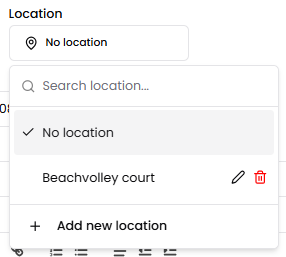
Wherever locations can be used within the platform, you'll find a location picker tool for easy selection. Pick one of the previously created locations, or Add new location directly from this interface.